Important Metrics
Awareness
Brand Mentions
- Search using the unlinked mentions search
- Change search settings to max out number of results per page
- Use Moz Bar to export each page’s results
- Highlight Page Authority column to get count of rows and average Page Authority of mention
- Shows how awareness increases or decreases
Inbound Links
- Use Link Explorer
- Enter site domain in search
- Go to “Inbound Links”
- Filter
- Link source blank
- Link type: follow
- Link state: active
- Limit results for feeds and proxy sites (but not to one link per domain)
- Export CSV
- Select Domain Authority column to get count of rows and average Domain Authority
Top-of-Funnel Keywords
- Moz Pro campaign > Rankings
- Set date range
- Add filter for “top of funnel” label
- Find search visibility percentage for that label and period
On-Site Activity
Organic Traffic & Referral Traffic
- Find at GA > Acquisition > All Traffic > Channels
- Record sessions, not users since that shows how many times the site was used
New Organic Users
- Find at GA > Acquisition > All Traffic > Channels
- Record “New Users” column value
Middle-of-Funnel Keywords
- Moz Pro campaign > Rankings
- Set date range
- Add filter for “middle of funnel” label
- Find search visibility percentage for that label and period
Conversions
Page Depth & Duration
- Find at GA > Acquisition > All Traffic > Channels
- Record “Pages/Session” and “Avg. Session Duration” from “Organic Search” row
- If this is increasing, site quality is increasing and users are engaging more with the site
Bottom-of-Funnel Keywords
- Moz Pro campaign > Rankings
- Set date range
- Add filter for “bottom of funnel” label
- Find search visibility percentage for that label and period
Conversions & Value Per Conversion
For straightforward transaction/revenue relationships
- Find at GA > Acquisition > All Traffic > Channels
- Record “Ecommerce Conversion Rate,” “Transactions,” and “Revenue” from “Organic Search” row
- If this is increasing, site quality is increasing and users are engaging more with the site
For less straightforward relationships
Set up a Goal for the view in GA
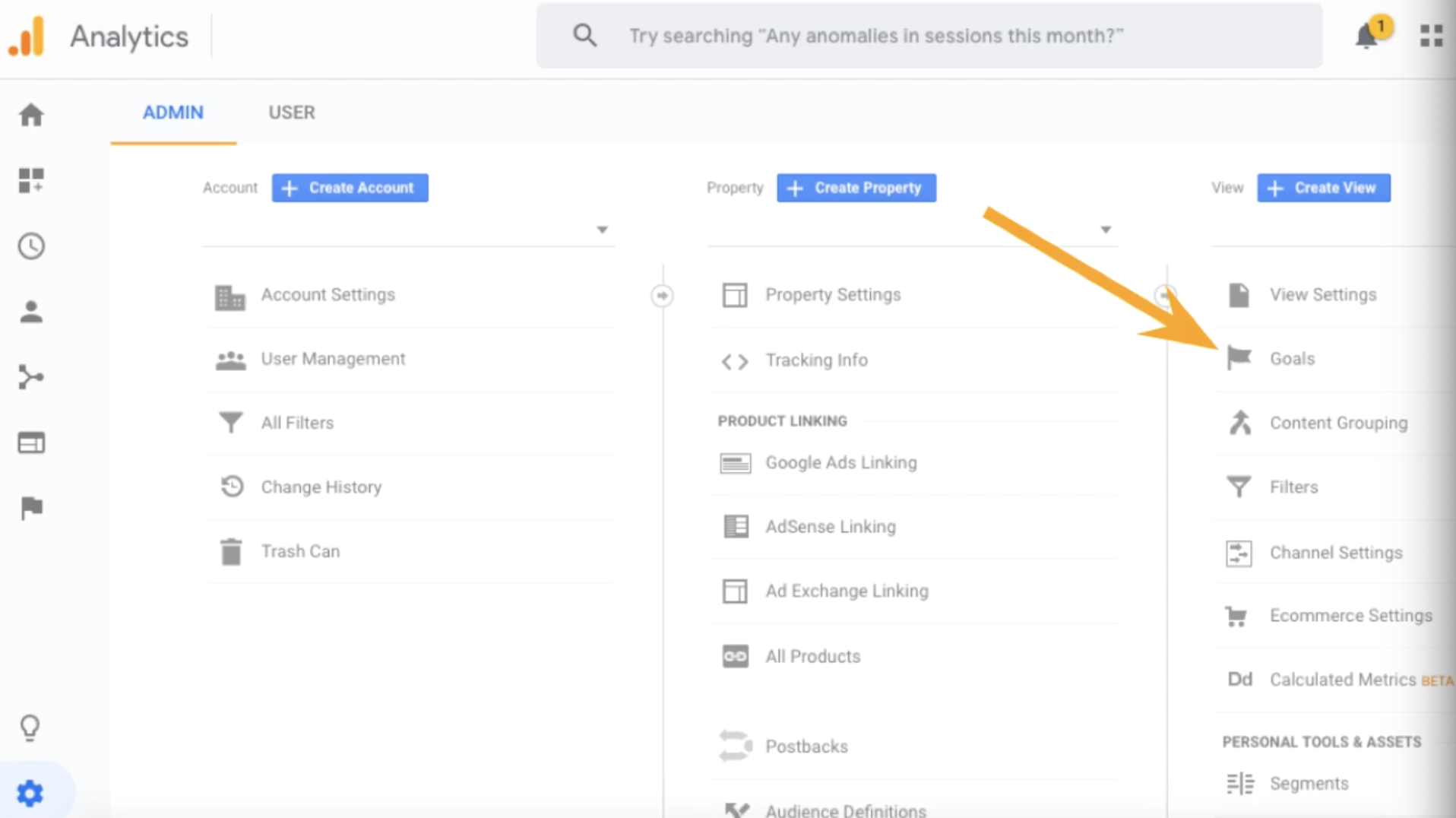
- Click Goals under the view
- Click “New Goal”
- Use a template or a custom goal
- (For custom) Name the goal and select a type
- (For destination type) Set destination and value
- (Optional) Define funnel
- Verify goal and save.
Integrity
Since we are taking action on this data, we want it to be as pure as possible. We need to filter out data that is not actionable.
- Spam (ghost spam 👻, crawlers 🕷, etc.)
- Various pre-written filters are available on The Ultimate Guide to Stopping Spam, Bots, and Other Junk Traffic in Google Analytics
- Bots 🤖 (scrapers and unwanted spiders)
- Filtered view > View Settings > Bot Filtering > check “Exclude all hits from known bots and spiders
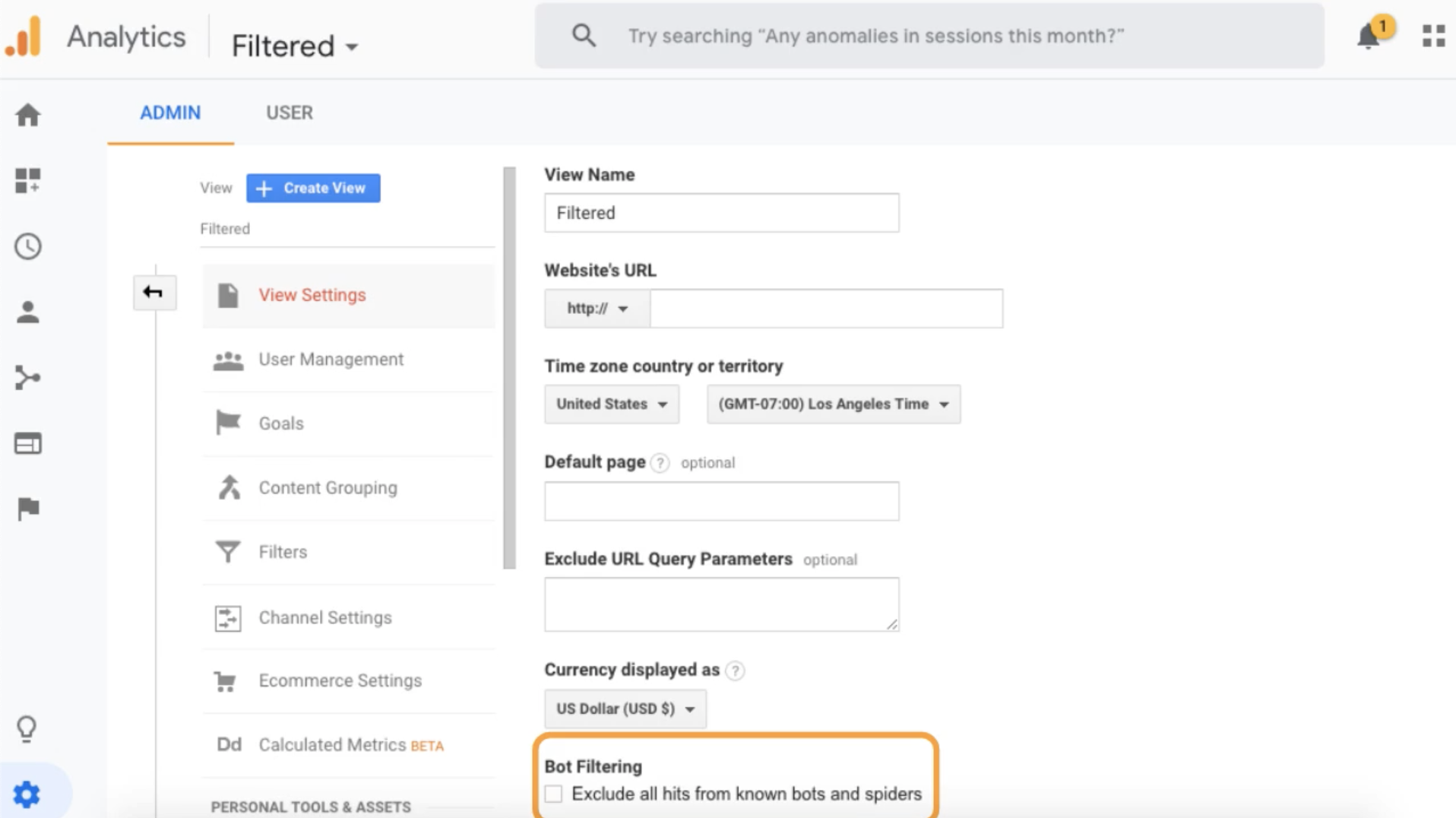
- Repeat for other filtered views
- Filtered view > View Settings > Bot Filtering > check “Exclude all hits from known bots and spiders
- Internal traffic 🪞
- Filter any IPs that would typically be used to work on the site
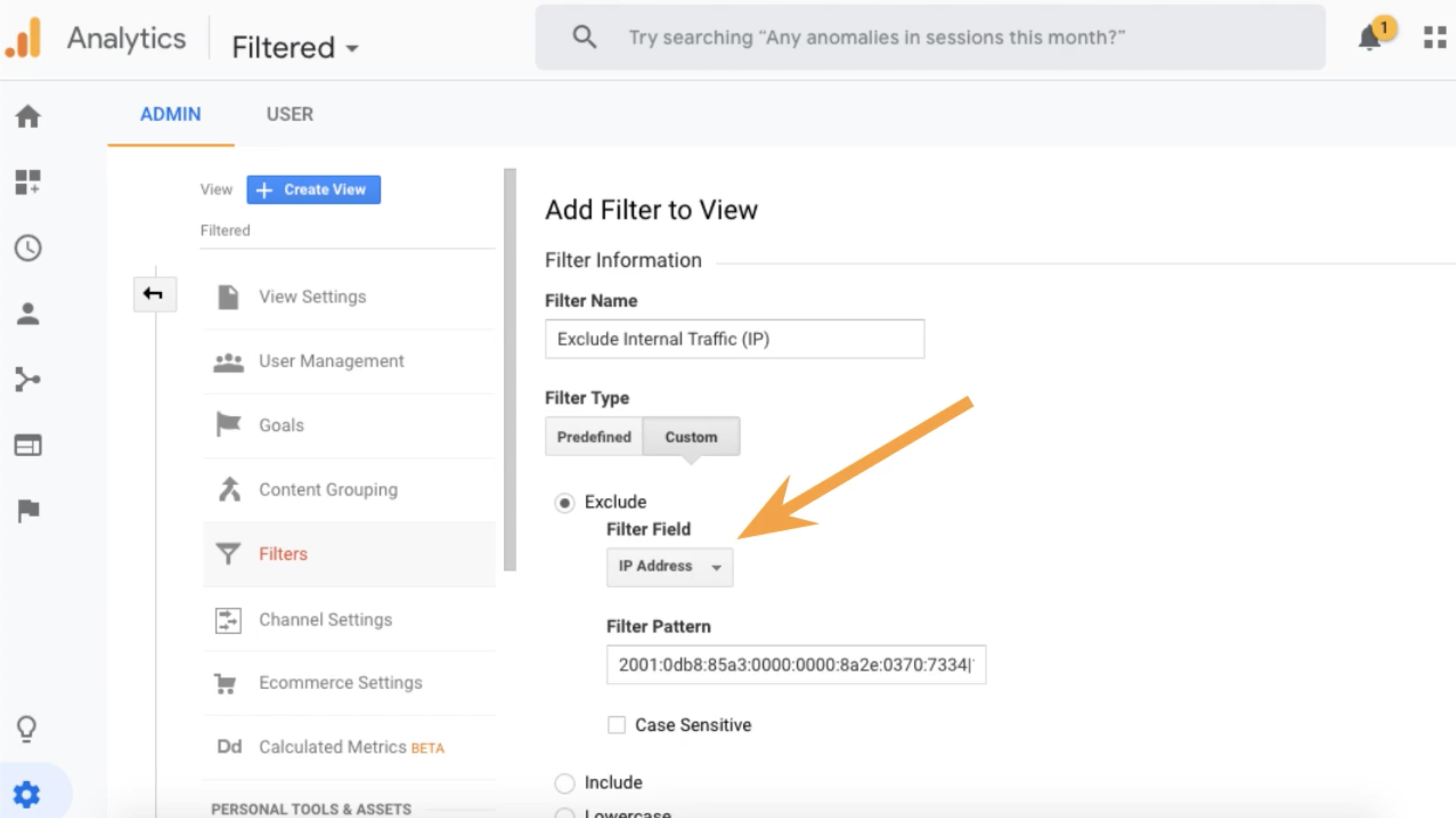
- May not always be practical
- Can use Google Tag Manager to set a cookie on internal traffic and filter traffic with that cookie
- Filter any IPs that would typically be used to work on the site
Start by creating an unfiltered view you can always get back to. Then create your filtered view and your test view to try out new filtering.
- In GA admin, click “Create View”
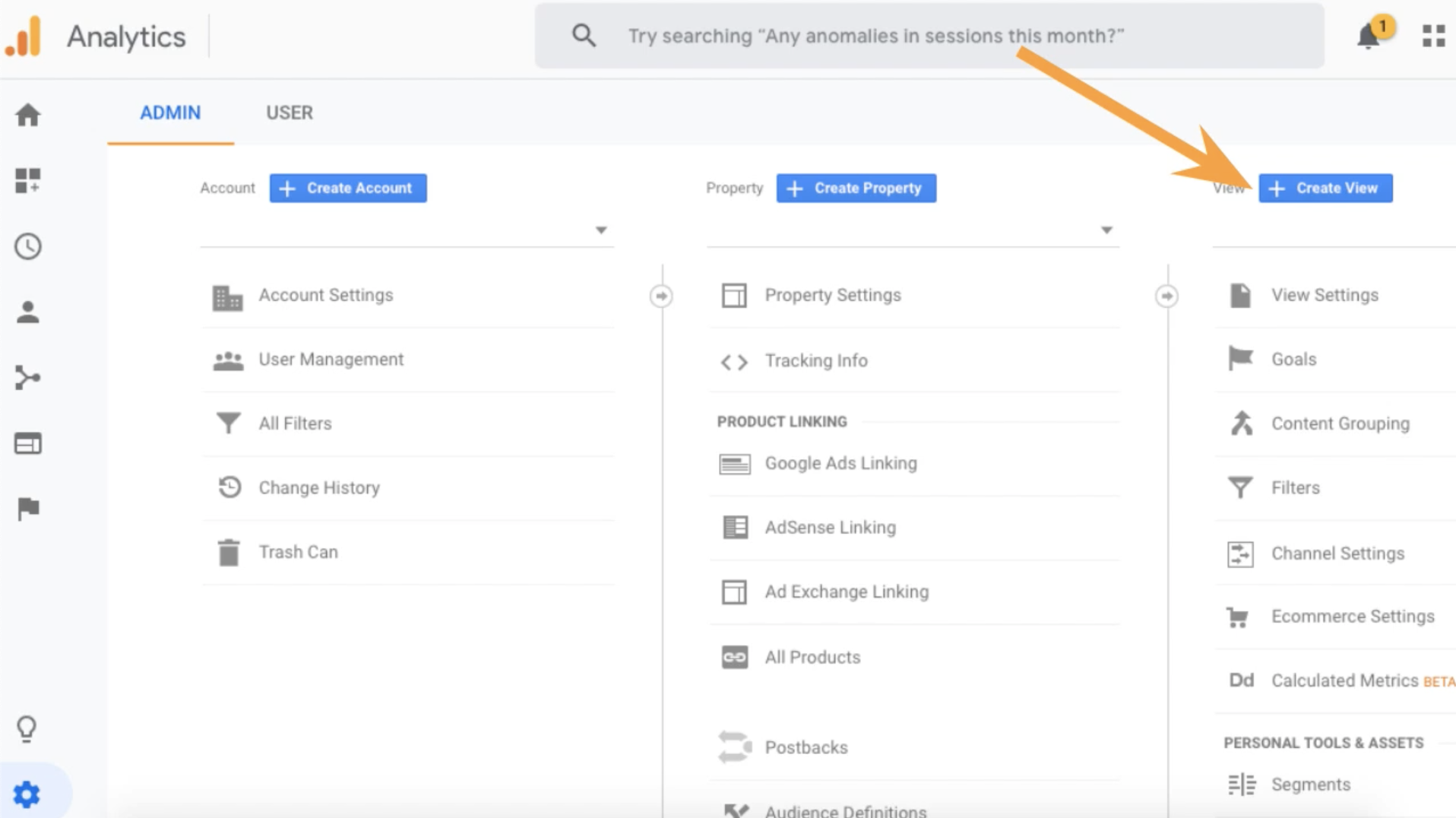
- Name “Unfiltered” or something like it
- Repeat twice for “Filtered” and “Test”
Now, apply filters to your Filtered or Test view.
Notes
- Filters do not affect data already collected. They only impact new incoming data.
- Never apply filter to your unfiltered view.
- Filters can take time to go into effect (up to 24 hours)
Resources
Cross-Domain Tracking
With Google Tag Manager
- More Settings > Cross Domain Tracking > Add a comma-separated list of all domains to track
- More Settings > Fields to Set > Add a field named
allowLinkerwith the valuetrue
With Google Analytics
Help article for Universal Analytics Help article for GA 4
ga('create', 'UA-XXXXXXX-Y', 'auto', {'allowLinker': true});
ga('require', 'linker');
ga('linker:autoLink', ['example-1.com']);