Our custom connectors automatically discover fields based on the endpoint or based on a configuration value. This is the procedure for updating fields on an existing connector.
Procedure
- Find and open the source you want to update in the Google Data Studio dashboard
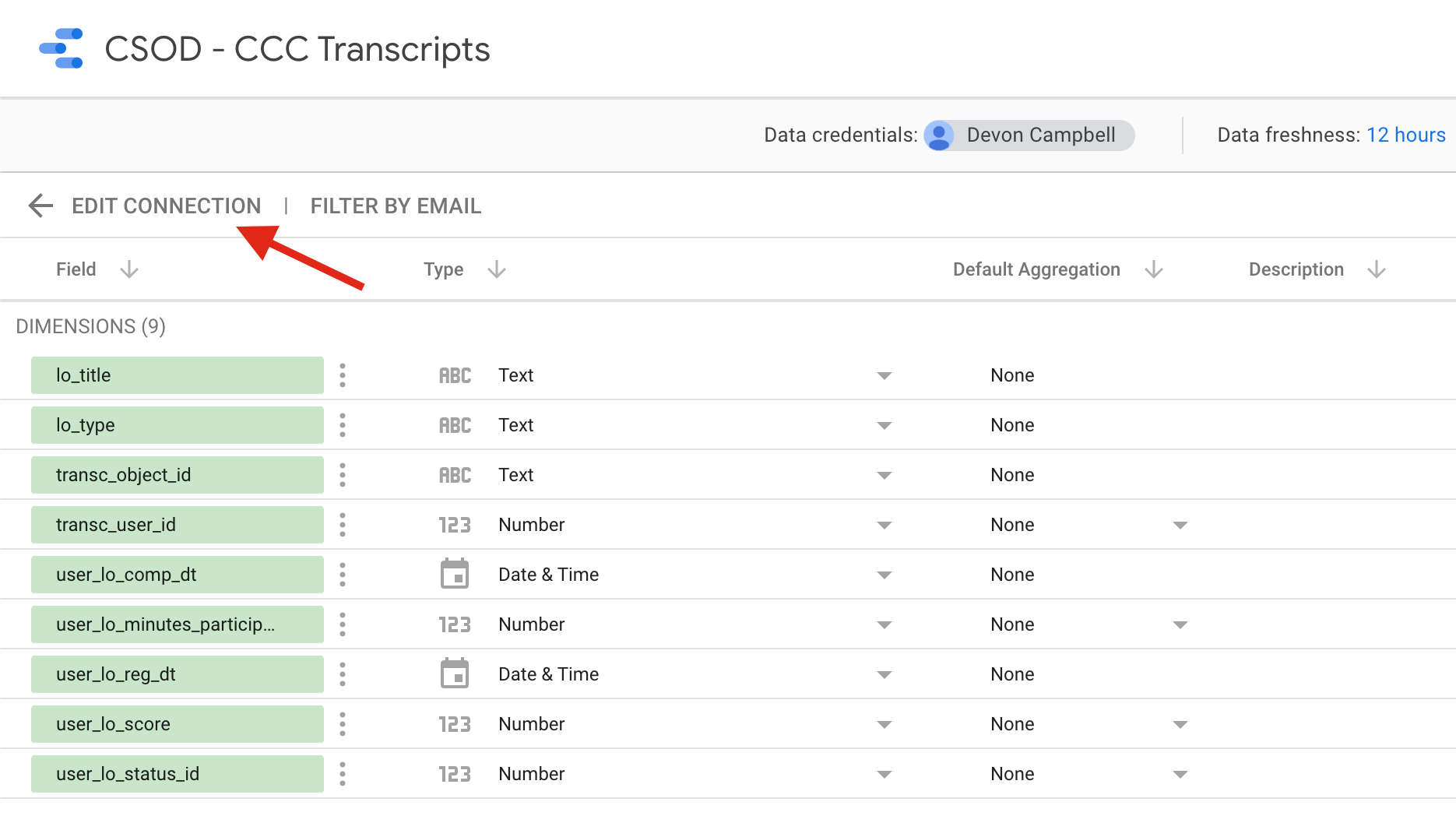
- Click “Edit Connection” in the top left of the fields listing view
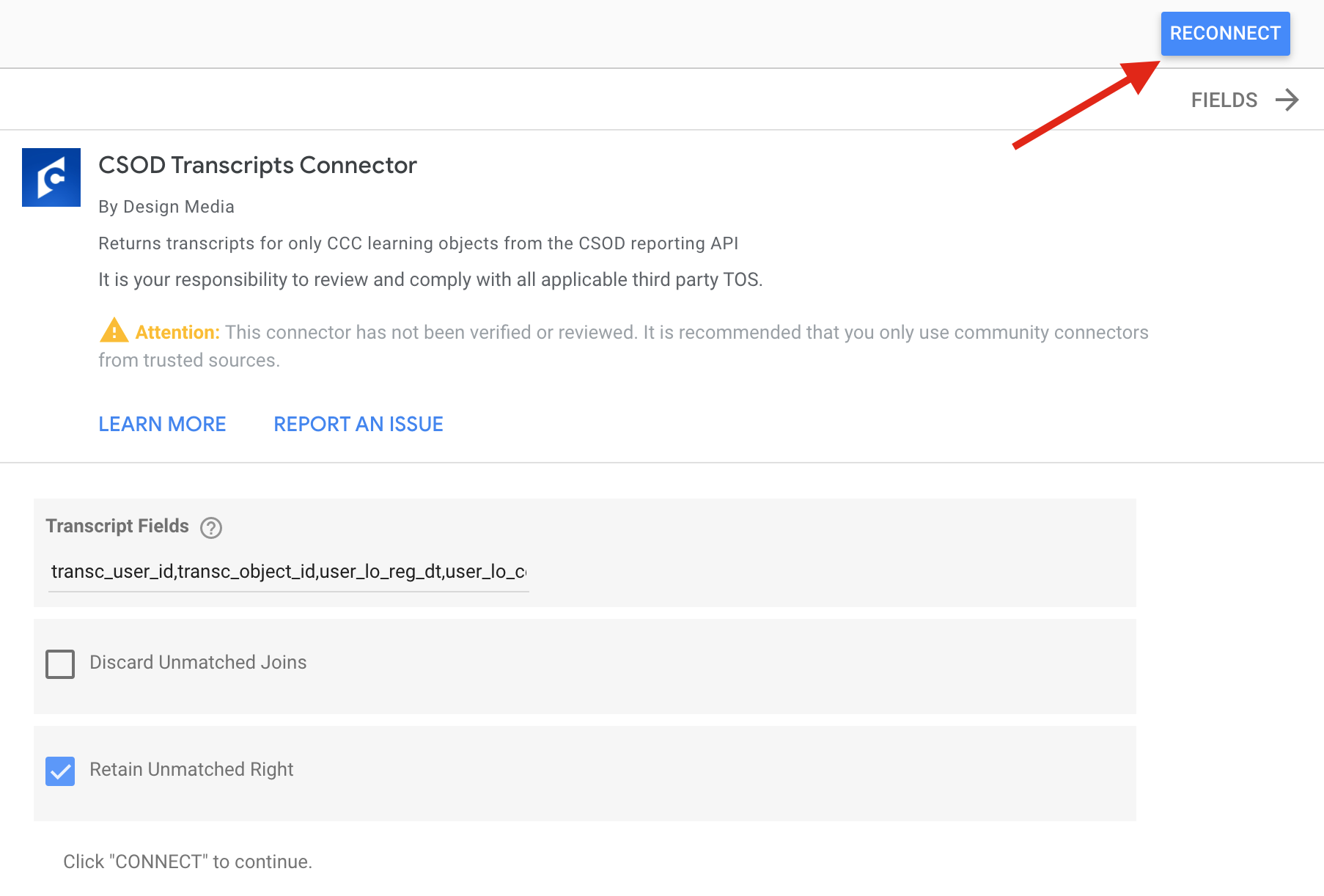
- Add the new field’s name to either the endpoint or to the configuration field. (For the transcripts connector, this will be in a separate field. For most others, fields will be listed as comma-separated values in the
$selectquery parameter.) - Click the “Reconnect” button in the top right.
- Click “Accept” on the dialog asking if you want to add the fields.
For cached data sources
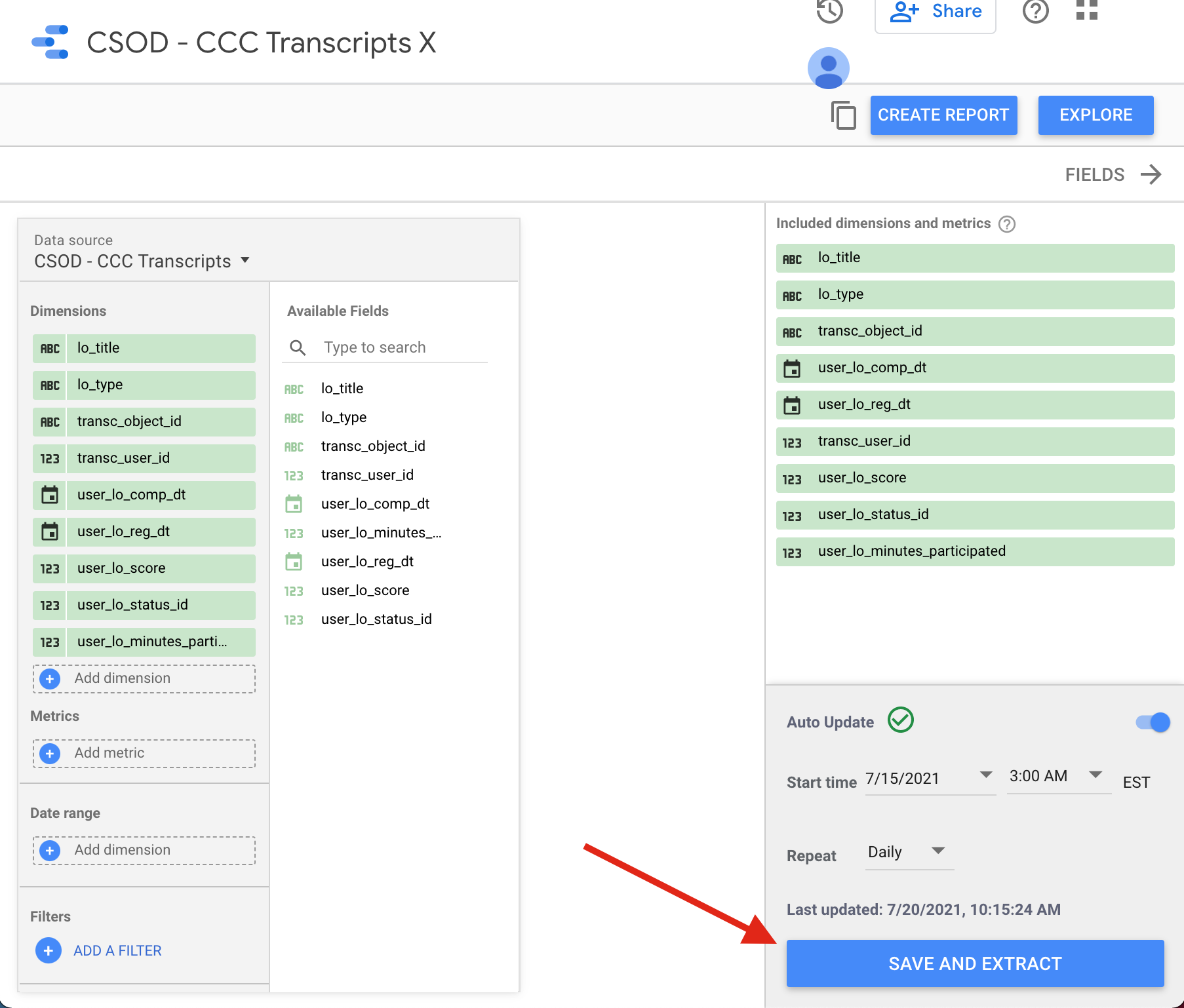
If the data source also has a cached version in use (denoted by an “X” at the end of the source’s name, by our convention), you will also need to update the cached source after updating the original source.
- Find and open the cached data source
- Click “Edit Connection”
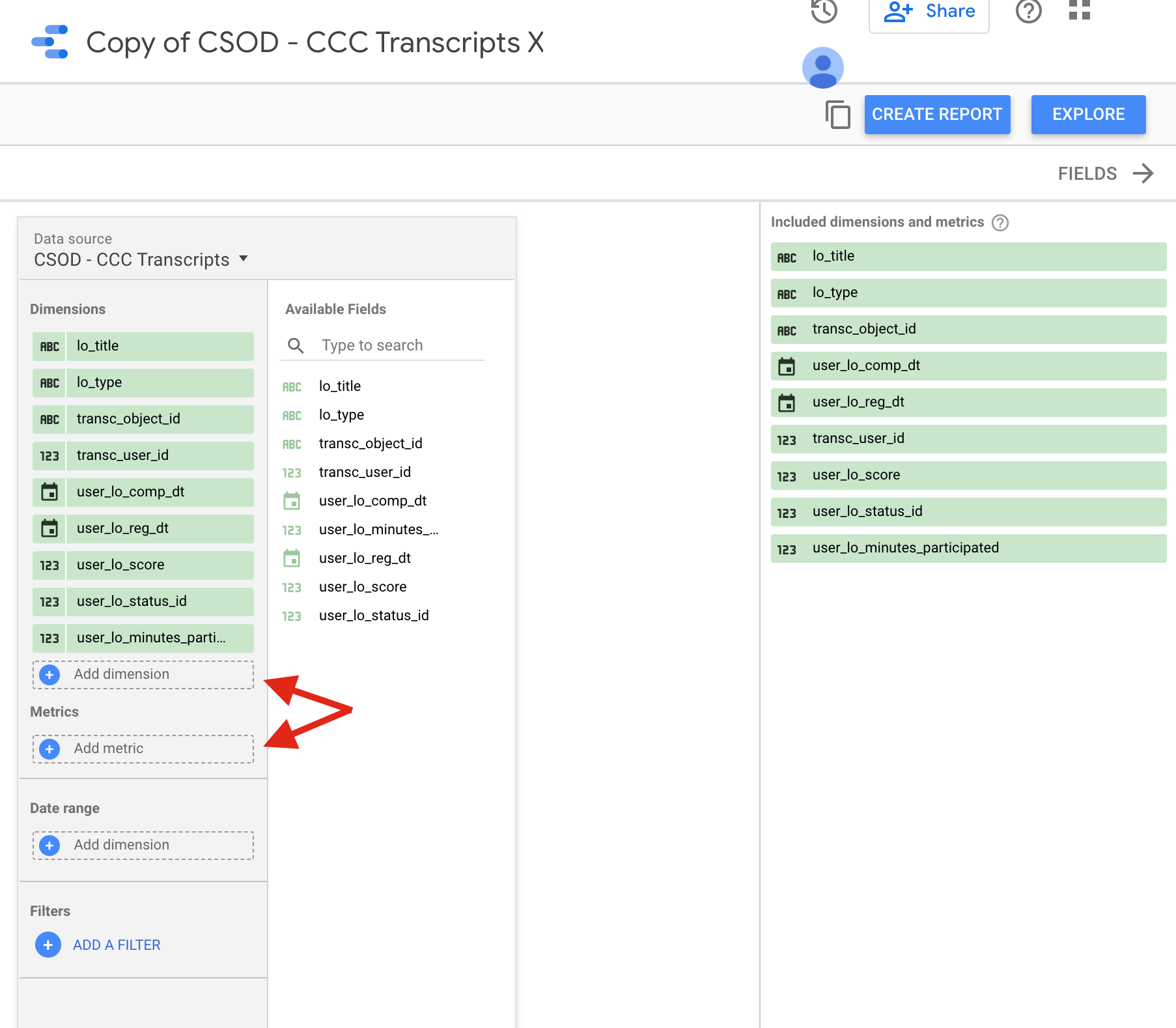
- Add the new field as a dimension or metric on the left by clicking the plus and selecting the new field
- Click “Save and Extract” in the bottom right. This will take a while for Cornerstone OnDemand sources because that API is exceptionally slow.